Adding and Managing Your Services
Services are what clients book. Each service has a name, price, and duration. This guide shows you how to create, edit, and manage them.
Step 1: Go to Services
Click Services in the top navigation. You'll see a list of your existing services, or an empty state if you haven't added any yet.
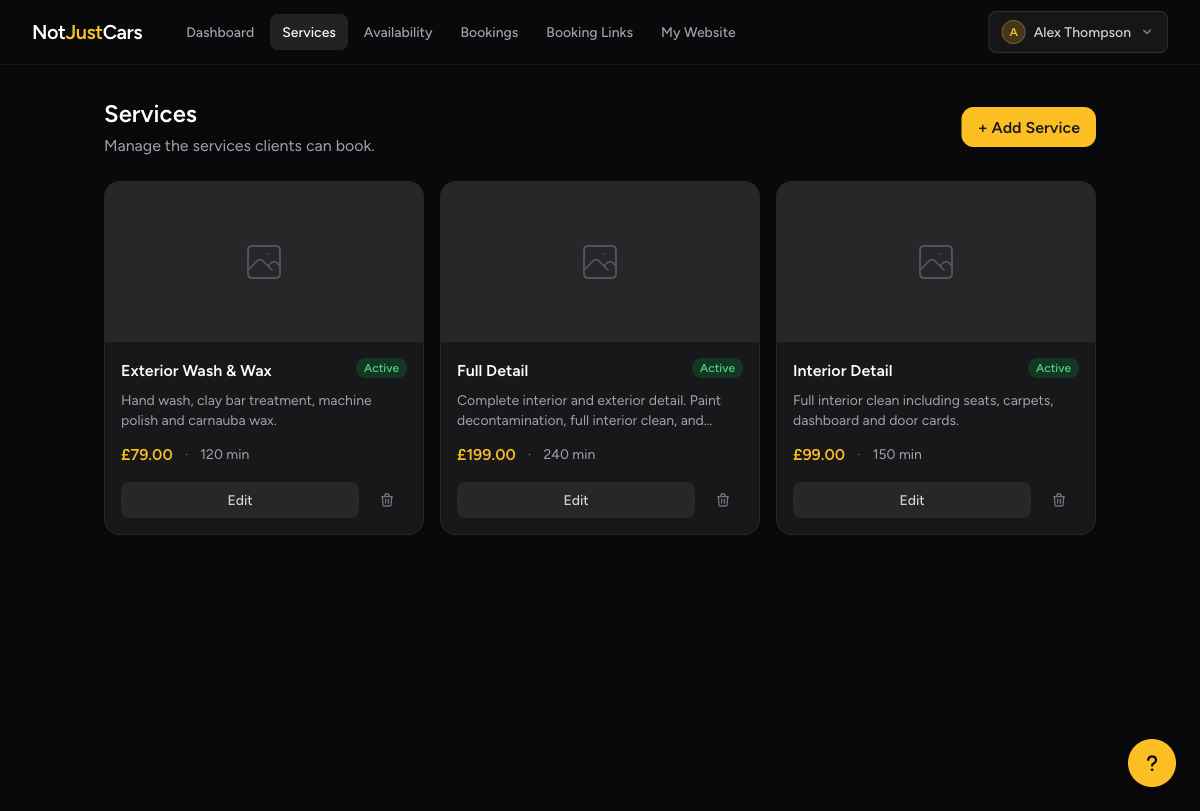
Step 2: Add a New Service
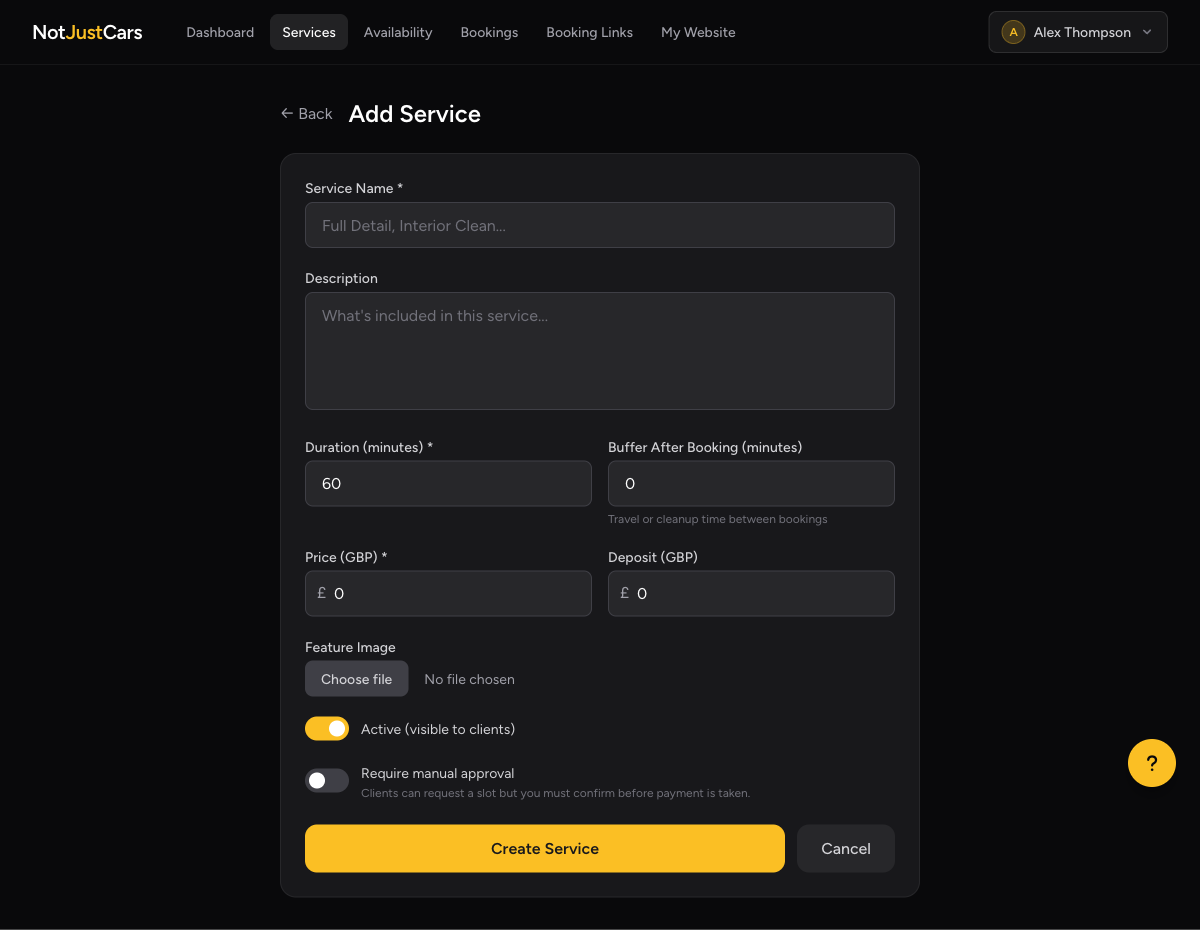
Click Add Service. Fill in the details:
- •Name — what the client sees, e.g. "Full Detail" or "Interior Clean"
- •Description — a short summary of what's included
- •Price — the full price in pounds
- •Duration — how long the job takes (determines available booking slots)
Step 3: Set a Deposit (Optional)
Deposits protect your time. If enabled, clients pay a portion upfront when booking and the remainder is collected after the job. You can set a deposit as a percentage of the service price or a fixed amount.
See the Deposits & Payments guide for details on collecting the remainder.
Step 4: Require Manual Approval (Optional)
Toggle Require approval if you want to review and approve each booking before the client's card is charged. Their card is authorised (held) at booking time, then charged only when you approve.
Useful for high-value or complex jobs where you want to confirm details with the client before committing.
Editing a Service
Click on any service in the list to open its editor. Changes take effect immediately for future bookings.
Deleting a Service
Open the service and scroll to the bottom. Click Delete Service. This is permanent — existing bookings for this service are not affected.