Bookings
Creating and Sharing Booking Links
Booking links are shareable URLs that let clients book directly with you. Put them in your Instagram bio, WhatsApp status, or send them via text message.
Step 1: Open Booking Links
Click Booking Links in the top navigation.
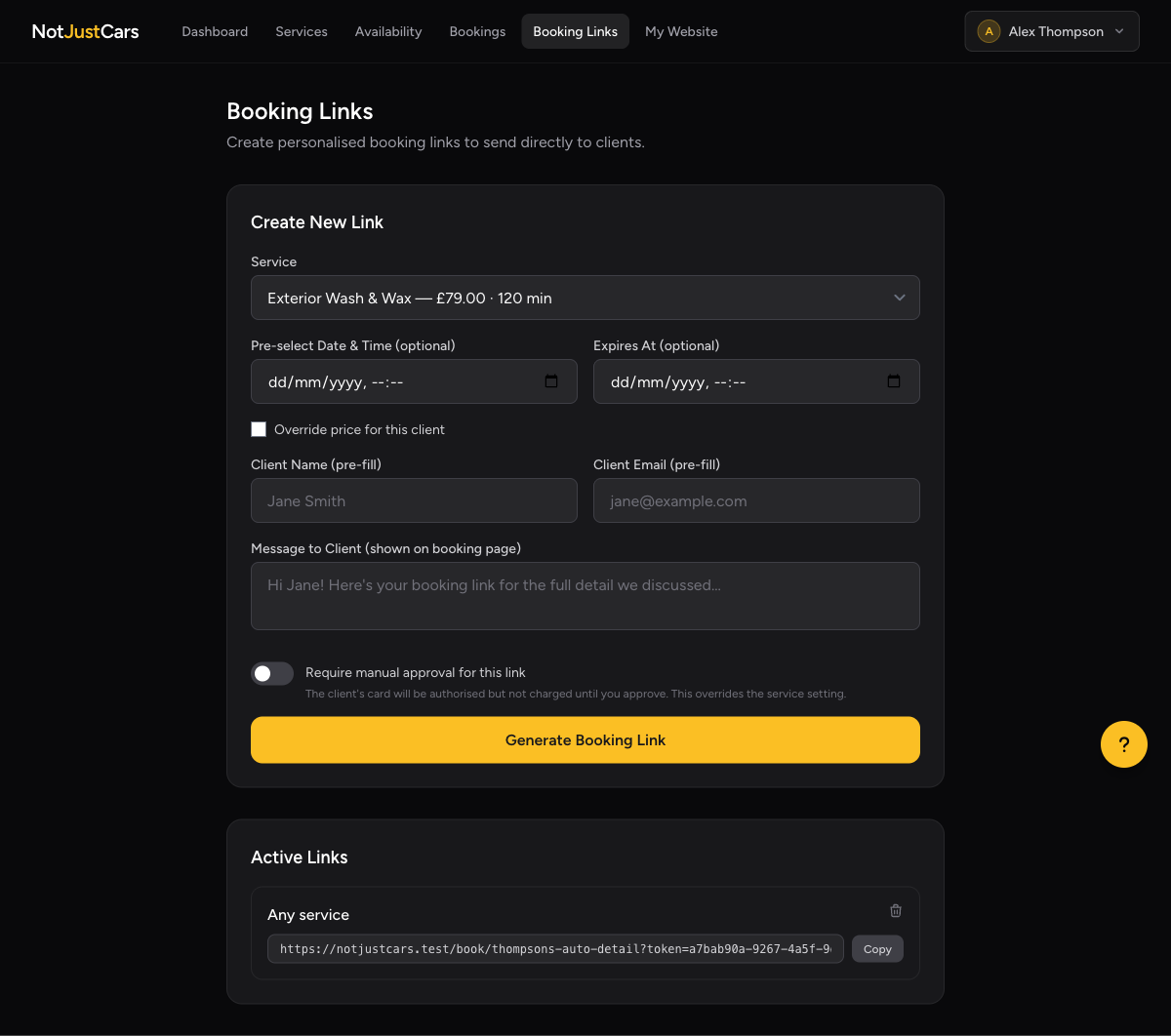
Step 2: Create a Booking Link
Click Create booking link. Fill in the details:
- •Name — an internal label, e.g. "Instagram Bio" or "WhatsApp". Clients don't see this.
- •Service — optionally restrict to a specific service. Leave blank to let the client choose from all your active services.
- •Require approval — toggle on if you want to approve each booking through this link before the client's card is charged.
Step 3: Copy and Share the Link
After saving, your booking link is generated. Copy it and share it wherever your clients will find you:
- •Instagram — paste into your bio (or use a link-in-bio tool)
- •WhatsApp — send to clients directly or add to your status
- •Facebook — post in your business page or local groups
- •Your website — use it as the URL for a "Book Now" button
What Clients See
When a client opens the link, they see your booking page with your business name, services, and available time slots. They pick a slot, fill in their details, and pay securely via Stripe.
Deleting a Booking Link
To deactivate a link, delete it from the Booking Links page. Anyone clicking the old URL will see a "not found" page — no new bookings can come through it.