Setting Your Availability & Hours
Your availability settings control which time slots clients see when they try to book. Without availability set, no booking slots will be shown.
Step 1: Open Availability Settings
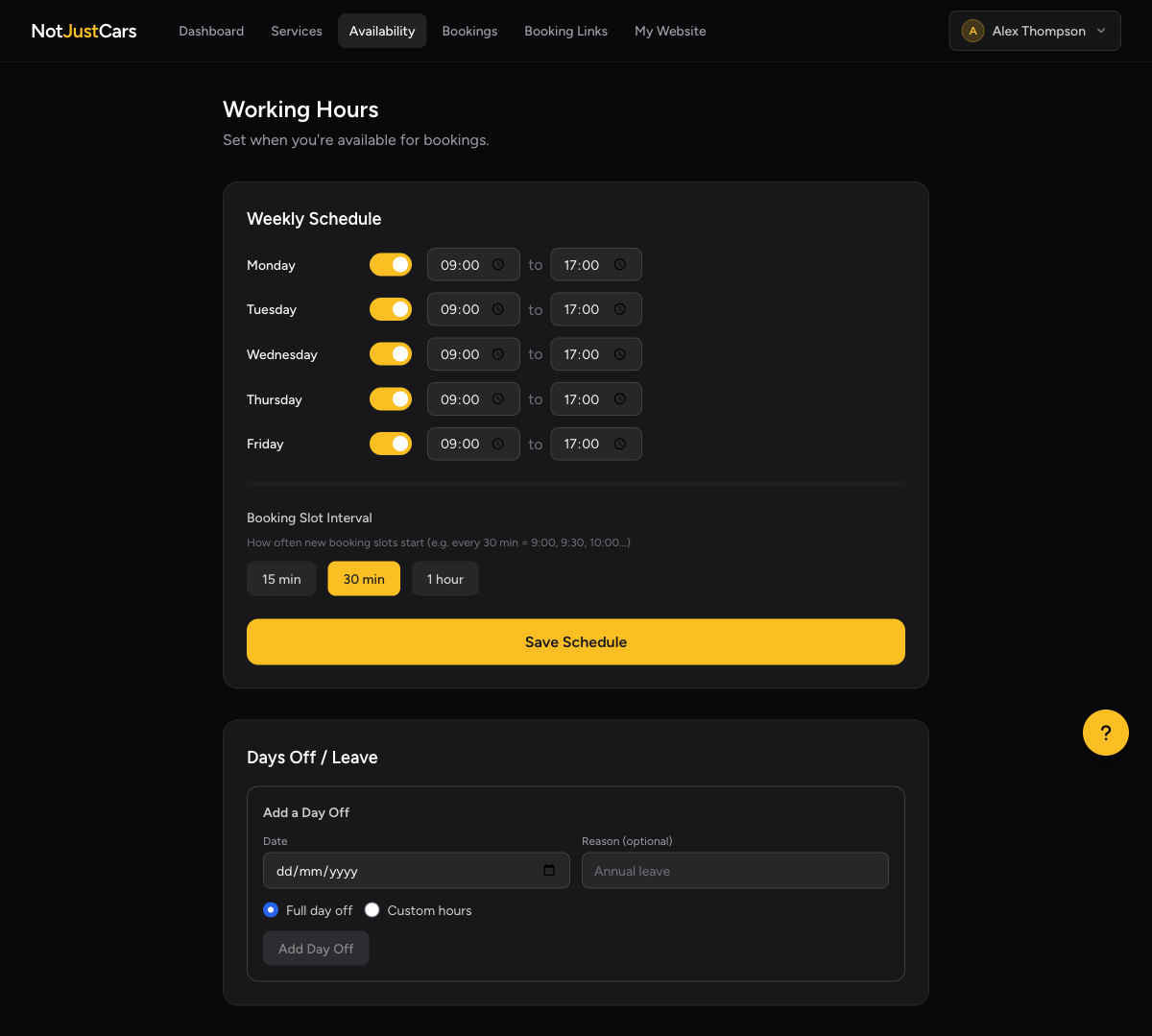
Click Availability in the top navigation. You'll see a weekly schedule editor.
Step 2: Set Your Working Days and Hours
For each day you work, toggle it on and set your start and end times. For example: Monday to Friday, 09:00–17:00. Days that are toggled off will show no available slots to clients, even if you have services listed.
Step 3: Block Out Specific Dates
Use Date Overrides to block holidays, days off, or any date you're unavailable. Blocked dates show no slots regardless of your weekly schedule.
You can also use date overrides to set custom hours for a specific day — for example, working a Saturday with shorter hours than usual.
Step 4: Save Your Changes
Click Save Availability. Changes take effect immediately.
How slots are calculated
When a client picks a service, NotJustCars calculates available start times based on your working hours and the service duration. A 3-hour service starting at 9am needs you free until 12pm. Existing confirmed bookings are automatically excluded so there's no risk of double-booking.