Managing Bookings: Approve, Decline & Complete
Your Bookings page is where you manage every appointment. This guide covers booking statuses and the actions available for each.
The Bookings List
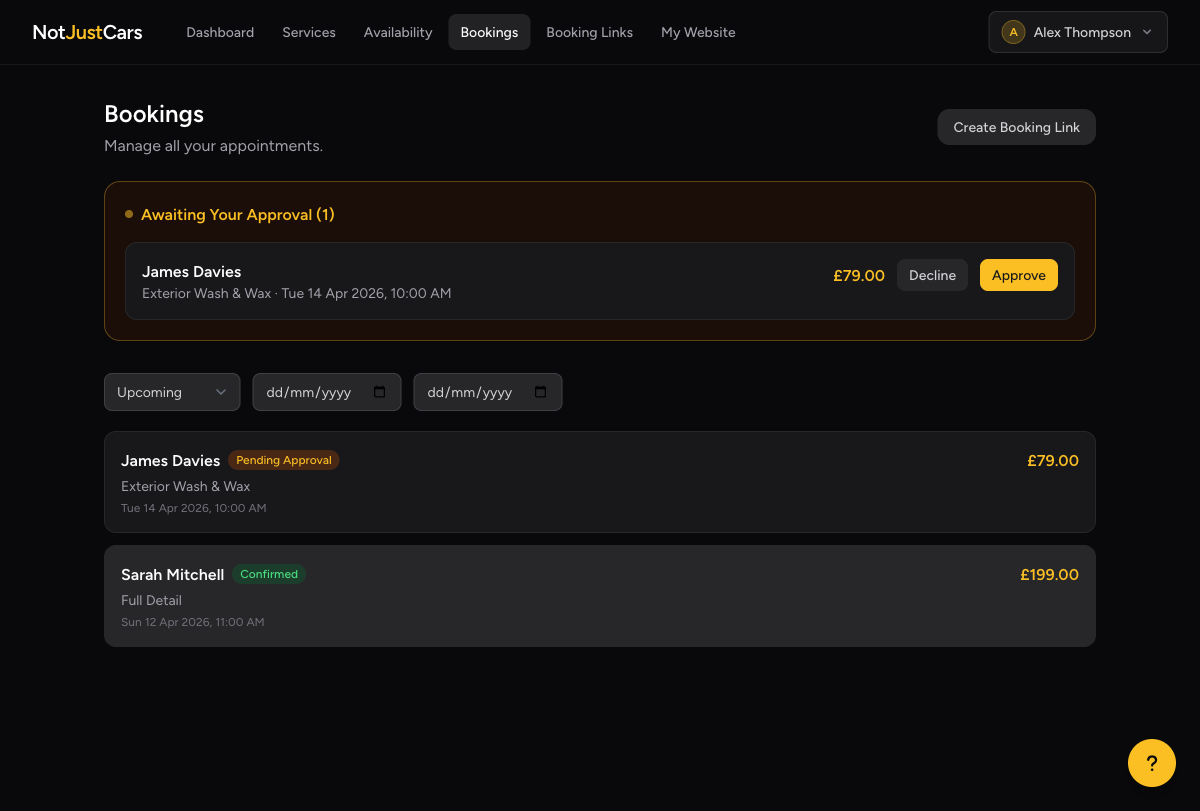
Click Bookings in the navigation. Each row shows the client's name, service, date, price, and current status.
Understanding Booking Statuses
The client's card has been authorised (held but not charged). You need to approve or decline.
Payment has been taken and the booking is confirmed. The appointment is in your schedule.
You've marked the appointment as done.
The booking was cancelled. Any card hold has been released.
The client didn't attend. The payment is retained.
Approving or Declining a Booking
For Pending Approval bookings, click the booking to open it. You'll see two actions:
- •Approve — charges the client's card and confirms the booking. The client receives a confirmation email.
- •Decline — releases the card hold. The client is not charged and receives a cancellation email.
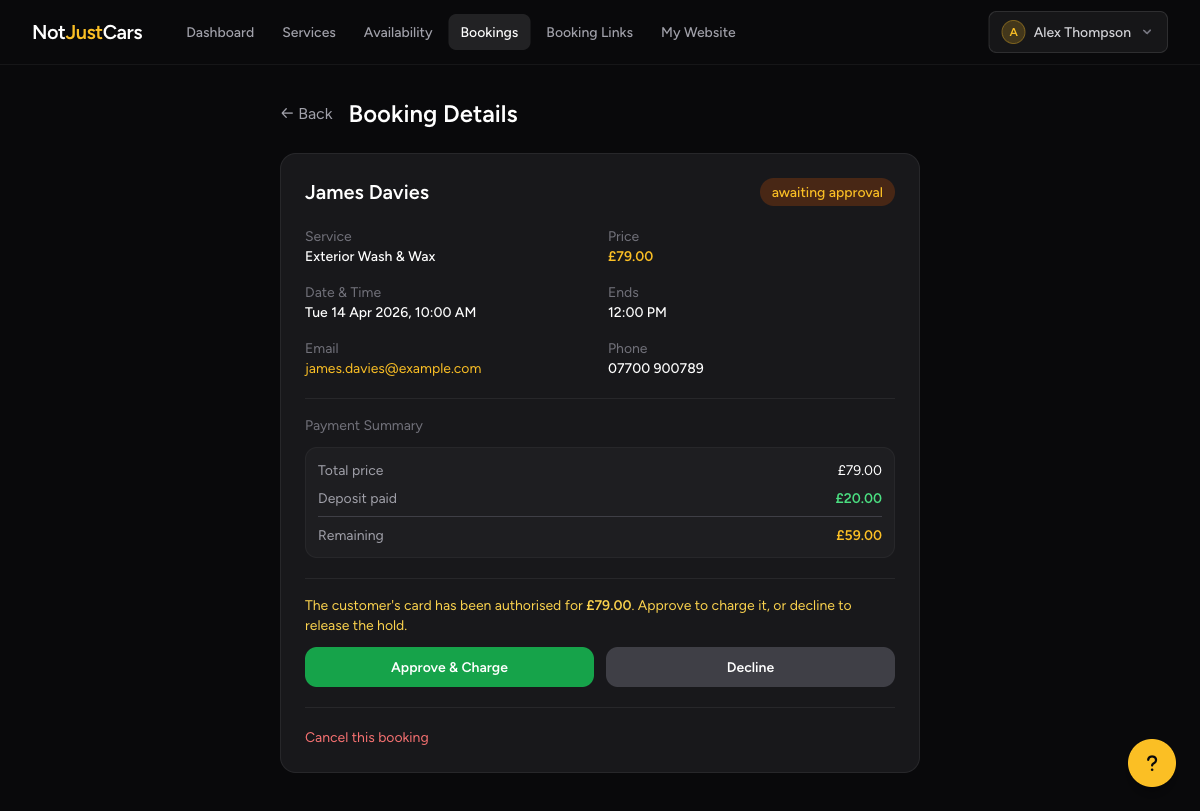
Important: Card authorisations expire after 7 days. If you don't approve within 7 days, the booking is automatically cancelled and the hold released. You'll receive a reminder email on day 6.
Completing a Booking
After the appointment, open the booking and click Mark as Complete. This changes the status to Completed.
If the service had a deposit and there's a remainder outstanding, you'll also see Collect Remainder. See the Deposits & Payments guide.
Marking a No Show
If the client doesn't turn up, open the booking and click No Show. This records the outcome without refunding the payment.